In this first tutorial, we'll cover the basics and write some boilerplate code for Pygame - code you will almost always write whenever you use Pygame. We will:
- Create a Pygame window
- Stop the window from immediately disappearing
- Close the window in response to a quit event
- Change the title and background colour of the window
Note for Mac users: If you get a blank screen when using Pygame, take a look here to find a version of pygame that works.
The Pygame window
Since we are going to use the Pygame module, the first thing we need to do is import it.
import pygameWe can now create a Pygame window object (which I've called 'screen') using pygame.display.set_mode(). This object requires two values that define the width and height of the window. Rather than use constants, we'll define two variables, width and height, which will make the program easier to change later on. Feel free to use any integers that suit you. In order to display the window, we use the flip() function:
(width, height) = (300, 200)
screen = pygame.display.set_mode((width, height))
pygame.display.flip()
If you now run this program, you’ll see a 300 x 200 pixel window appear and then promptly disappear. The problem is that once as the flip() function has been called, the end of the code is reached, so the program ends.
To keep the screen visible for as long as we want, we need to make sure the program doesn't end. We could do this by adding an infinite loop.
while True:
  pass
The problem with an infinite loop is that, by definition, it never ends. The program won't quit even if we want it to. If we try to close the window by clicking on the X, nothing happens. You have to use Ctrl + C in the command line to force the program to quit.
Closing the window
We want our window to persist until the user chooses to closes it. To achieve this, we monitor user inputs (known as 'events') using pygame.event.get(). This function returns a list of events which we can loop through and check to see whether any have the type QUIT. If we find such an event, we exit our loop, which is best done by changing a boolean variable (which I've called 'running').
running = True
while running:
  for event in pygame.event.get():
    if event.type == pygame.QUIT:
      running = False
The window now persists whilst 'running' is equal to True, which it will be until you close the window (by clicking the X). Note that if you use an IDE for Python programming, then it may interfere with Pygame. This isn’t normally a major problem but it can stop the Pygame window from closing properly. If so, adding pygame.quit() should solve the problem (Thanks to nf3 in the comments for mentioning this).
Changing the window's properties
Now we have a usable window, we can change its properties. For example, we can change its title using the set_caption() function.
pygame.display.set_caption('Tutorial 1')We can change the background colour by filling the screen object. Colours are defined using a 3-tuple of integers from 0 to 255, for the red, green and blue values respectively. For example, white is (255,255,255). Changes need to be made before the flip() function is called.
background_colour = (255,255,255)
screen.fill(background_colour)
The final program
The complete program, after a bit of rearrangement, should now look like this:
import pygame

background_colour = (255,255,255)
(width, height) = (300, 200)

screen = pygame.display.set_mode((width, height))
pygame.display.set_caption('Tutorial 1')
screen.fill(background_colour)

pygame.display.flip()

running = True
while running:
  for event in pygame.event.get():
    if event.type == pygame.QUIT:
      running = False
You can also find the complete code for this tutorial by clicking the Code on Github link at the top of the article.
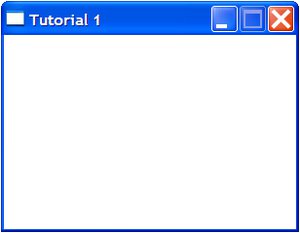
Running the program should create a window that looks like this (on Windows XP).
It's not very exciting at the moment, but now we have a window that persists until we close it. In the next tutorial we'll draw some shapes in our window and start our simulation by creating a Particle object.
Comments (40)
nf3 on 28 Jan 2011, 11:51 a.m.
found your tutorial very useful and easy to follow.
As i code with Idle, was troubled with the bad closing habits of the app. After a internet search I found a simple unobstrusive solution:
after, and outside of the last 'while running' loop, place the instruction
pygame.quit ()
peter on 28 Jan 2011, 12:08 p.m.
Cool. The closing error was the main reason I've avoided using an IDE. I might give it a go now, thanks.
Salvenheit on 29 Dec 2011, 5:07 p.m.
Perfectly explained, convenient tools to get the code and graphically nice site. It is helping me a lot, thank you very much.
Aditya Sriram on 2 Mar 2013, 12:24 p.m.
Why is it that we use
pygame.display.set_caption()
pygame.display.flip()
and not
screen.set_caption()
screen.flip()
Like the website very much. Glad to see that I'm not the only one using Windows XP.
William on 18 Nov 2013, 7:01 a.m.
Hi Peter
I love your work! I am a physics technician and your star formation simulation programme is proving very popular with the teachers.It works without problem on the Raspberry Pi, but when I try to use it on a windows machine with Python 2.7.6 installed, it throws up an error "Traceback (most recent call last): File "C:\Python27\window_opening.py", line 1, in <module> import pygame File "C:\Python27\lib\pygame.py", line 1 /* ^SyntaxError: invalid syntax"Should I install an earlier version, if so, which one? Thank you
peter on 20 Nov 2013, 6:02 p.m.
Hi William,
That's very cool that it works on Raspberry Pi. I'm glad you're enjoying the program. I have a 3D version online at Khan Academy if you're interested: https://www.khanacademy.org/cs/challenge-modeling-accretion-disks/1180451277
As for the problem you're having, it looks like there's a problem with the pygame.py file. Have you tried running any other programs that use Pygame or running python in the command line and typing import pygame? I'll check what the pygame file looks like on my Windows machine and see if I can work out what might be wrong, but it seems unlikely that I will be able to. I wrote the program using Python 2.7, so that's not the problem.
If you have any other problems, you can email me using the Contact Me button on the left hand side of the page.
Iavor on 30 Mar 2015, 6:20 a.m.
Hi Peter,
I noticed that your code does not initialize PyGame after the import statement (pygame.init()) before making and displaying the screen. My 300 by 200 PyGame screen does not show up unless I have this line in my code and I was wondering how you got it to work without it.
Iavor
Anonymous on 18 Jul 2015, 7:04 a.m.
Hello Peter,
Thank you very much for this tutorial, I am enjoying it.
Just one minor question: to check if an event is an object of type pygame.QUIT, why can't I use type(event) instead of event.type?
D P Robindon on 8 Nov 2016, 6:11 a.m.
Thank you, I've been wondering how to do this for some time and now I know. Time to make some games. Thanks again!
Kykex on 5 Mar 2017, 6:07 a.m.
Hi, how did you get the code with that style? Looks great and I would like to know to use it in a future project.
Martin on 18 Sep 2017, 7:19 a.m.
Hello Peter,
Thank you for an amazing pygame tutorial. I was googleing pygame and happened upon your page. Thanks to your great physics tutorials, I was able to create my project in nontime. Thank you for the great work.
Thank you,
Martin
Sagisu on 5 Nov 2017, 3:47 a.m.
Hi Peter, Very good Web Page for python & pygame.
formal Python & pygame homepage. not understandable
I dont understand guess
Implicit expression and omit expression Python computer lagnguage.becouse what is omit is not able to recognize and guess easily.
your Page is very good .I'm glad to access this site and I hope that continue like this your site for long time. May I ask some question ? What is it mean "WhiteSpace" ?
November 05th ,2017 with regard.
Anonymous on 30 Dec 2017, 2:35 a.m.
How do you creat a smaller screen on top of the orginal screen in pygame?
nhatvu on 29 Aug 2018, 10:01 p.m.
Hi, thank you. You tutorial is really understandable. I am a ME major student.
Anonymous on 15 Dec 2018, 4:31 a.m.
Thank you for this helpful tutorial. I would like to know how to edit in a background image. I have tried but pygame cant seem to open the JPEG file.
ChemE Student on 24 Jan 2019, 10:31 p.m.
Looks good so far! Thank you.
Ollie Cole on 6 Feb 2019, 9:06 p.m.
Thank you so much. I didn't know why my window kept disappearing after a few seconds but you guys helped massively and in a way I understood. Thanks.
DerpLo on 16 Feb 2019, 1:46 p.m.
Thanks for the tutorial, it helped me quite a bit but when I try to close the pygame window
it does not close, is that because I'm coding on a Mac?
Philip McDermott on 19 Feb 2019, 12:11 a.m.
Can a button/label be add in pygame outside the screen/window?
Vishwas Narayan on 26 Mar 2019, 1:08 p.m.
i need the code for the pyaudio file also being used in the system here
John Deighan on 26 May 2019, 8:12 p.m.
Even when I have screen.fill() before pygame.screen.flip(), my window initially comes up with a black background before switching to the fill color.
Shumail on 19 Aug 2019, 11:14 a.m.
code is good.. But when I put width 40 and height also 40 my screen become double ,can you please explain ?
Leo on 1 Jan 2020, 7:05 p.m.
when I typed
"running = True"
I got a syntax error.
WHY!?
ANakin on 7 Jan 2020, 6:54 a.m.
Loved this article explaining how to do this. Very helpful! Thank you!
Fidelis Joackim on 15 Jan 2020, 12:47 p.m.
its great and I find this so useful for me.
Ahyaan on 21 Feb 2020, 11:08 p.m.
For some reason when I try to create the window, it doesn't pop up. I have written all the code right. Imported pygame properly and for some reason the window doesnt open. Pls help.
Asmaar on 12 Mar 2020, 7:06 p.m.
Ahyann.
If you have written up the code correctly it should work, but if it does not you may not have the pygame library. I usually use pycharm so i know the easy fix for this.
When you select your interpreter, you need to press the + and search up 'pygame' and then add download it onto your project interpreter
Buddy on 11 Jun 2020, 11:24 p.m.
Hey, Peter!
Thanks a lot for this tutorial, it's very helpful! Also, I think I've seen you before on the Khan Academy Programming section. Nice work!
Unknown on 2 Sep 2020, 5:26 p.m.
Great 👌
Background won't change? on 17 Sep 2020, 11:51 p.m.
I'm working on a simple arcade game with Pygame, but the window refuses to apply any of the images I'm attempting to load. The program finds them, but they don't appear in the window. Moreover, the background color won't change.
I copy/pasted the program above and run it with the exact same results. The window opens up fine, but it refuses to update the background color.
Any ideas why? Again, I'm using your code as written and I'm sure it should work...what else could be preventing the background from updating?
Peter on 18 Sep 2020, 3:59 p.m.
If you're on a Mac, there is an issue with some versions of python and pygame. See this answer for more information about which versions work: https://stackoverflow.com/questions/52718921/problems-getting-pygame-to-show-anything-but-a-blank-screen-on-macos-mojave
I've edited the page to include a note to this effect.
Bob on 22 Sep 2020, 10:10 p.m.
Cool man! thank you!
Nick on 27 Sep 2020, 4:23 a.m.
Thanks for the help!
👀 on 17 Oct 2020, 9:53 a.m.
Still relevant and correct, thank you!
Me on 17 Oct 2020, 11:29 a.m.
Oh and if the color change doesn't work:
try pygame.display.update() after making those changes :)
👀 on 17 Oct 2020, 11:29 a.m.
Oh and if the color change doesn't work:
try pygame.display.update() after making those changes :)
AAXPR4219B on 24 Oct 2020, 11:53 a.m.
OMG thanks to u mate :)
UNKNOWN on 24 Oct 2020, 6:06 p.m.
#You can try this :
import pygame, sys
from pygame.locals import *
pygame.init()
DISPLAYSURF = pygame.display.set_mode((500, 500))
pygame.display.set_caption('Black window')
while True:
for event in pygame.event.get():
if event.type == QUIT:
pygame.quit()
sys.exit()
pygame.display.update()
#ITS EASY TO UNDERSTAND
frenchuser on 30 Oct 2020, 2:41 p.m.
thanks great tuto, very clear
PyScientist on 7 Nov 2020, 8:17 p.m.
Thank you great job
I am using PyCharm as IDE
The following code launched:
while True:
# Passing through events appeared
for event in pygame.event.get():
# if type of event corresponds to quit then quit))
if event.type == pygame.QUIT:
pygame.quit()
# Update the screen on the each step of main loop of the game
pygame.display.update()
and got the next error when closing the application
Traceback (most recent call last):
File "C:/Python36/Scripts/GameDev/main.py", line 67, in <module>
pygame.display.update()
pygame.error: video system not initialized
So i have changed code to following (exit() added) and error disappeared.
while True:
# Passing through events appeared
for event in pygame.event.get():
# if type of event corresponds to quit then quit))
if event.type == pygame.QUIT:
pygame.quit()
exit()
# Update the screen on the each step of main loop of the game
pygame.display.update()
Hope this helps someone