Science · Code · Curiosity

Gradients
In this blog post I'll briefly explain how to create a gradient fill in Inkscape. It's pretty straightforward, yet not exactly intuitive.
- Select a shape
- Open the Fill and Stroke menu (Shift+Ctrl+F)
- Open the Fill style tab
- Choose the Linear gradient option
Clicking the Linear gradient option will automatically fill the path with a gradient in which opacity changes from 100% to 0%. The gradient will be given a name ending in a series of random numbers (such as linearGradient3755).
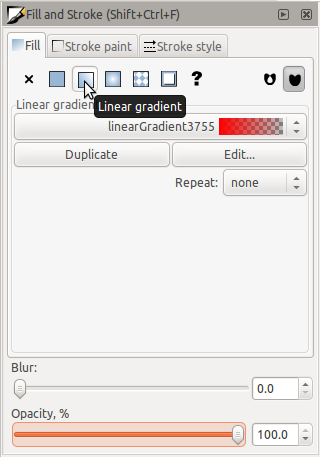
Changing the gradient
To change the gradient, click the Edit... button (now call Edit gradient).
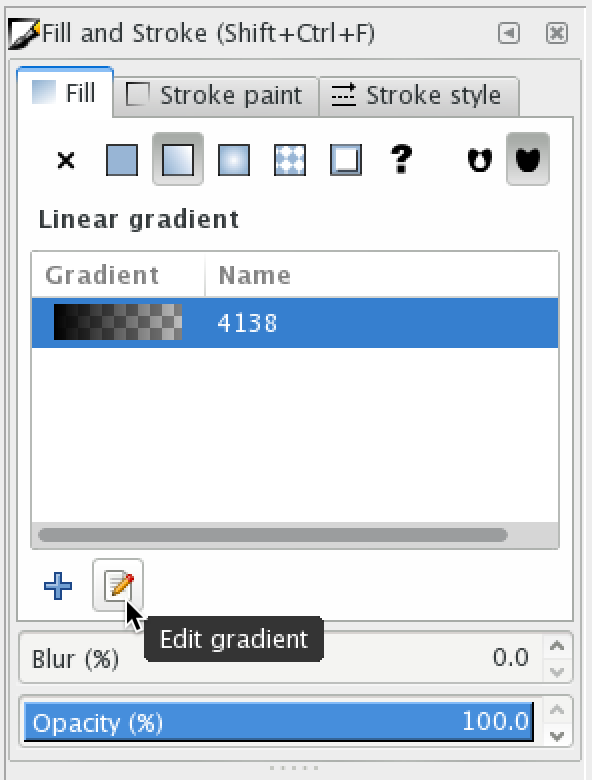
This opens the Gradient editor along the top of the workspace. In older versions of Inkscape it opens up a separate window (see below).

Gradients work by smoothly varying the colour between stops. By default, the first stop is solid black and the second stop fully transparent black (it has a checkerboard next to it).
Say you wanted a gradient from solid red to solid blue. First select the second stop from the dropdown to bring the Fill and Stroke menu for that stop. I don't know how to get this menu for the first stop first. Once you have selected the second stop, you can select the first stop and change its colour too.
Then you can set the colour by dragging the arrows or setting the numbers in the normal way. For example set R = 0, G = 0 B = 255, A = 255 for solid blue.
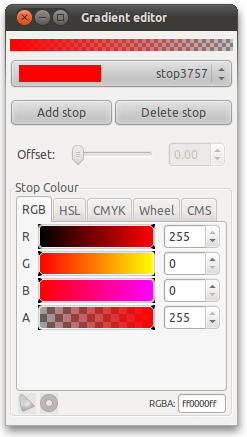
You can use the 'Add stop' button to create more complex, composite gradients varying between multiple colours. In the newer versions of Inkscape this is the last button along the top with a plus over a square node.
Changing the angle of a gradient
To edit the angle and slope of the gradient, move the line representing the gradient on the shape. It has a circular node at one end and a square at the other. You can move these nodes to change where the gradient starts and ends, which can be inside or outside of the shape.
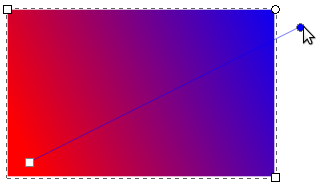
In older version of Inkscape you have to first select the shape, and chose the 'Edit path by nodes' tool (F2) in order to display this line.
The radial gradient basically works in the same way, only you can change the height and width of the ellipse formed by the gradient.
Comments 10
Leave a comment
Comments are moderated and will appear after approval.
Hey, I've been looking at how to change the angle of a gradient for about 2 years... thanks a lot!
I don't see a Edit path by nodes tool, and on my Macbook Pro, F2 adjust brightness.
To the guy who's on the mac, you'll probably need to hold down some sort of function key to make your "F2" button actually send the F2 command. Macs assume that people usually want to change brightness more than they want F2 (which is usually true), so they make that the default function of the key.
Hello!
Thank you for this tutorial! I've been tinkering with Inkscape for weeks but I've never been able to fully control the gradients. Your tutorial helped a lot. Just wanted you to know that.
Hi!
I want to rotate the gradient fill in Text.
How I can do it?
Thanks
Note, the gradient editor has changed in version 0.91 (for the worse in my opinion)
I want to set a default for the gradient, I want it 'grey to white'... every time I click a new shape to apply the gradient to it goes back to 'fill colour to transparent'. I have about 100 objects I want to apply this gradient to, each at a very slightly different angle (drawing a picture of a broken chain). Is there a way to do this? Thanks!
My edit option appears a bit differntly, and i don't see the option to add a stop. can anyone help me with that?
Handy tutorial. Just an update for those reading this in a post 0.92 world. The current version (0.92) doesn't seem to have a dedicated dialog window for the gradient editor opting instead to put the contents on the crossbar above the work space. It's very subtle and easily overlooked.
Linton thank you for being the up-to-date comment here